
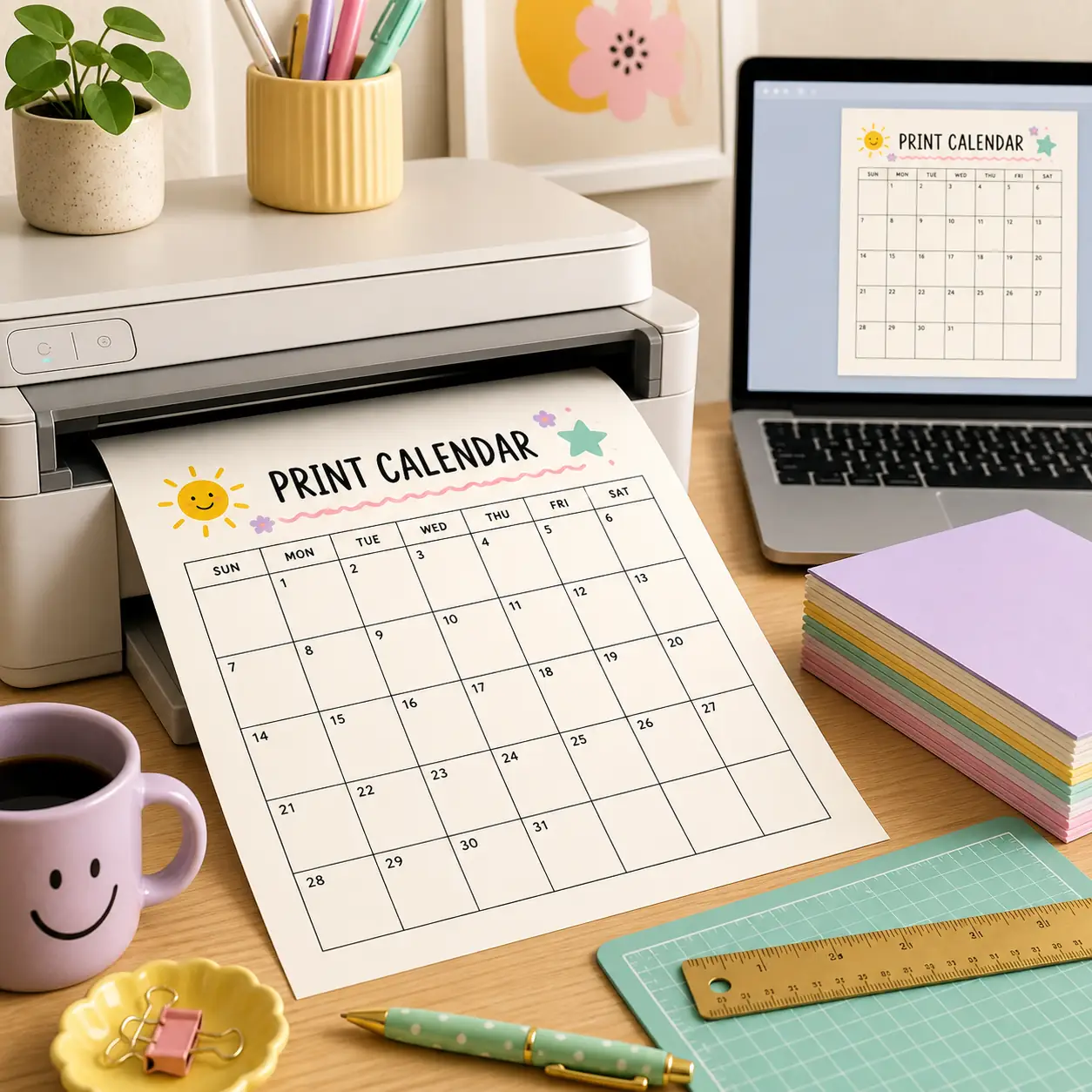
Quick answer: use a monthly or weekly view when you need writing space, choose the actual paper loaded in your printer, keep the print scale near 100%, turn off browser headers and footers, and inspect every edge in preview. If dates are clipped or too small, change the layout or page type before reducing the scale further.
Choose the right calendar format before you print
A printable calendar is easier to read when its amount of information matches the job. A yearly page is useful for birthdays, school terms, travel, payment dates, and project milestones. It gives context, but twelve small months can leave little room for handwriting. A monthly page is usually the better choice for appointments, meals, household routines, and deadlines that need a note inside each date box.
Use a weekly printable calendar when the next seven days matter more than the whole month. The seven columns are practical for shifts, classes, errands, meal planning, and short project plans. A blank calendar is useful when you want to add your own labels or create a schedule that does not follow a normal month. Choose the page type before changing print scale; shrinking the wrong format rarely fixes a crowded layout.
Monthly, yearly, weekly, or blank?
For a broad overview, start with the 2027 printable calendar or the year you need. For detailed writing, use the printable monthly calendar and choose landscape if each date needs more room. For a short planning cycle, the weekly page keeps every day visible without forcing twelve months onto one sheet.
A blank calendar is not automatically better for every task. It gives you control, but you must add dates and labels yourself. If the date grid is the important part, use a generated page first and reserve the blank format for custom schedules, rotating routines, classroom systems, or undated planning.
- Yearly: milestones and dates that need a quick overview.
- Monthly: appointments, family plans, school work, and notes.
- Weekly: shifts, meals, errands, and the next seven days.
- Blank: custom labels, undated routines, and flexible schedules.
| Planning need | Best page | Why |
|---|---|---|
| See the whole year | Yearly calendar | Milestones stay visible across all twelve months. |
| Write appointments | Monthly calendar | Date boxes have more usable writing space. |
| Plan one work week | Weekly calendar | Seven days are easier to scan and update. |
| Build a custom routine | Blank calendar | You can add your own labels and categories. |
Compare A4, US Letter, portrait, and landscape
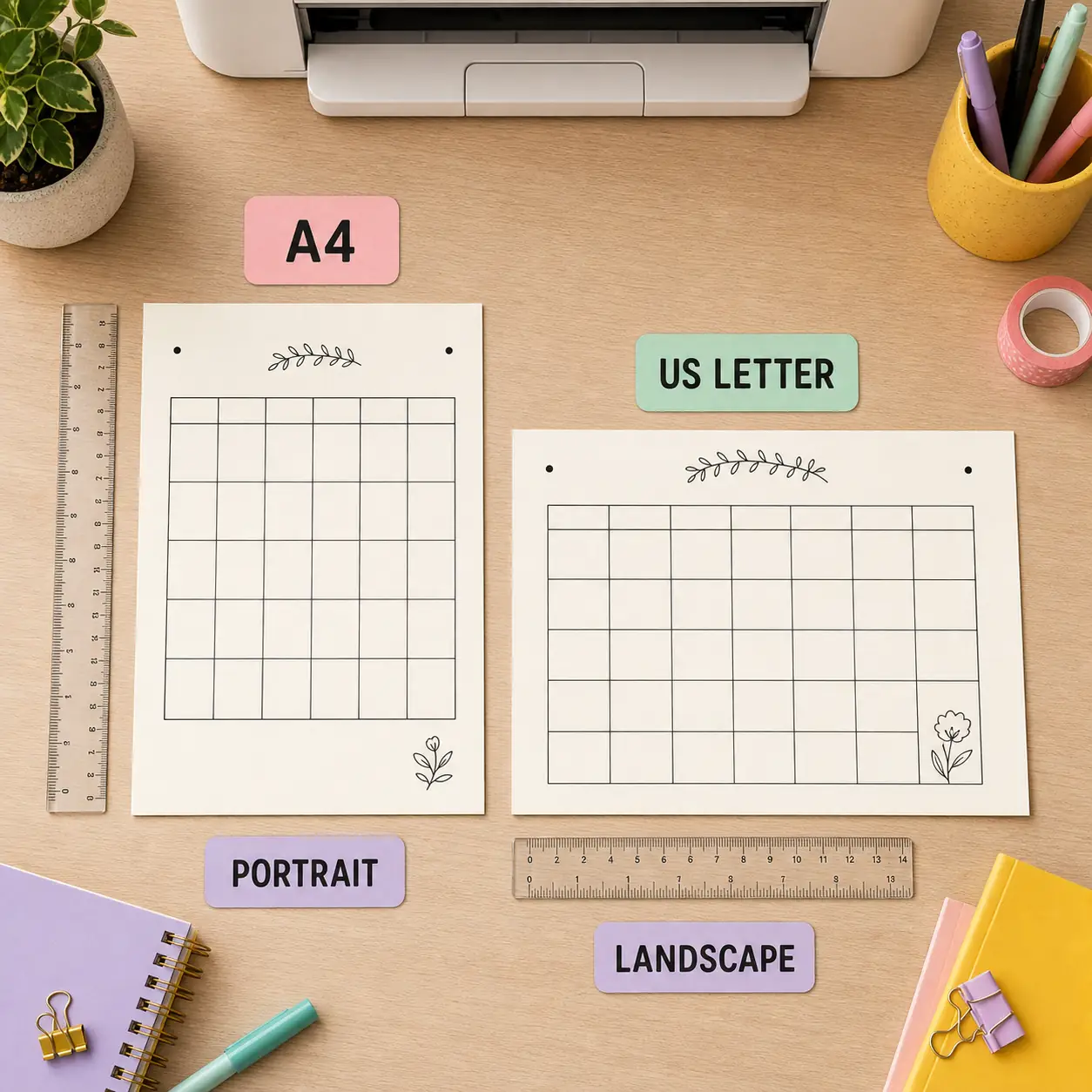
A4 and US Letter are not interchangeable labels. A4 is the common international office-paper size, while US Letter is common in the United States and Canada. Select the option that matches the paper loaded in the printer and then confirm the same choice in the browser print dialog. If the source page and printer dialog disagree, the browser may scale the calendar or clip an edge.
Orientation changes the shape of the writing area. Portrait is taller and often fits folders, clipboards, and planner inserts. Landscape is wider and usually gives a monthly grid or a seven-column weekly grid more horizontal room. There is no universal best orientation: choose the direction that gives the page the largest useful date boxes without making the text too small.
Which format gives more writing room?
For handwriting, landscape is often the practical first test because it gives each column more width. For a yearly overview, portrait can make the page easier to file and can keep the three-column month arrangement balanced. Use the preview at normal size rather than choosing from the label alone.
| Choice | Usually works well for | Check before printing |
|---|---|---|
| A4 | International printers, folders, and office binders | The printer tray and browser dialog both say A4. |
| US Letter | Many US home and office printers | The loaded sheet is Letter, not A4. |
| Portrait | Year views, binders, and narrow storage | The bottom row and title fit within the page. |
| Landscape | Monthly notes and weekly seven-day grids | The page is not rotated or cut at the sides. |
Use the browser print settings in the right order
A calendar maker controls the date grid, but the browser print dialog controls the final paper job. The safest workflow is to choose the calendar options first, open print preview, verify the paper and orientation, and only then adjust scale or margins. This keeps a browser default from silently changing the layout you just checked.
Keep scale close to 100% when the page already fits. Use a small reduction only when the print preview shows a narrow edge or the last row does not fit. A large reduction may keep the full grid on one sheet but make dates and handwriting space uncomfortable. When the page is genuinely too dense, switch from yearly to monthly or from portrait to landscape.
What should be visible in the preview?
The title, weekday labels, first date, final date, and every outer border should be visible. For a monthly view, check months that begin or end with an extra row. For a weekly view, confirm the first and last day of the seven-day range. If the preview is already clipped, do not rely on the physical printer to repair it.
- Select the pageChoose yearly, monthly, weekly, or blank mode based on the planning task. Set the year, month, week date, and Sunday or Monday start before printing.
- Match the paperSet A4 or US Letter in the calendar maker and confirm the same paper size in the browser print dialog and printer tray.
- Set directionTry landscape for wide monthly or weekly grids and portrait for filing or a compact yearly page. Check that the browser did not rotate the page unexpectedly.
- Review scale and marginsStart near 100%, use the preview to check every edge, and choose default or minimal margins only when the printer supports them.
- Remove unwanted extrasTurn off browser headers and footers when you do not want a URL, date, or page number printed above the calendar.
Fix clipped, tiny, or misaligned calendar output
Most failed calendar prints are caused by a mismatch between the generated page and the browser or printer settings. Start with the preview because it shows whether the problem exists before ink is used. If the preview looks right but the paper is wrong, check the physical paper size, printer tray, and printer-specific scaling option.
Do not solve every problem by shrinking the page. A calendar is a planning surface, so legible weekday names and writable date boxes matter more than fitting an oversized grid onto one sheet. Use the table below to choose the smallest change that addresses the actual problem.
Treat dates and holidays as a final verification
The generated grid can show dates and planning space, but local public holidays, school closures, employer schedules, and personal events vary by country and institution. Add those details only after checking the relevant local source. This matters especially when a printed calendar will guide travel, attendance, payroll, or a deadline.
| Problem | First fix to try | Why it helps |
|---|---|---|
| The last row is cut off | Confirm paper size, then reduce scale slightly | The browser may be using a different sheet or margin. |
| The calendar is too tiny | Use monthly mode or landscape | A better page format creates room without tiny text. |
| The sides are clipped | Match orientation and check margins | A wide grid needs a wide page and printable edges. |
| A URL or date appears | Turn off browser headers and footers | Those extras are browser print decorations, not calendar content. |
| Weekdays look wrong | Check Sunday/Monday start and the selected date | The start setting changes column order, not the actual dates. |
| A holiday is missing | Verify it with a local official source | This generator does not promise a universal holiday list. |
Print on paper or save a clean calendar PDF
Use direct printing when the calendar will live on a wall, desk, refrigerator, classroom board, or binder. Paper is useful when the plan must stay visible and easy to mark by hand. Use Save as PDF when the same layout needs to be emailed, archived, distributed, or printed again later. The PDF is a snapshot of the preview, so inspect it once before sharing.
A clear filename reduces mistakes when several versions exist. Include the year, month or week, and format, such as `2027-calendar-year.pdf` or `2026-calendar-08-landscape.pdf`. Keep one clean source PDF and print from it when you need consistent copies. If the plan changes, regenerate the page and review the new preview rather than editing an old PDF by assumption.
A simple paper workflow
Create the page, preview it, print one test sheet, and confirm that the date boxes are large enough for the writing instrument you plan to use. Then print the remaining copies. This small test is valuable for classroom handouts, office boards, and shared family schedules because printer margins vary by device.
A simple PDF workflow
Choose Save as PDF, keep the selected paper and orientation, open the saved file, and check the first and last page. If the PDF is meant for another person, tell them which paper size and scale were used. That context helps them avoid changing the layout accidentally in a second print dialog.
Run this final print calendar checklist
A reliable print calendar workflow takes less time than reprinting a whole batch. Compare the selected settings with the sheet in the printer, then read the preview as if you were already using the page. The goal is not merely a complete grid; it is a page that remains clear after handwriting, copying, or sharing.
If you need a different format, use the related calendar pages below instead of forcing one layout to do every job. The monthly, weekly, blank, yearly, and PDF tools are complementary choices.
- The year, month, or week date is correct.
- The Sunday or Monday start matches the way you plan.
- The paper in the tray matches A4 or US Letter in the dialog.
- Portrait or landscape gives the date boxes enough room.
- The preview shows every row, border, weekday, and title.
- Scale is readable and headers/footers are disabled when unwanted.
- Local holidays and personal events have been checked separately.
- The saved PDF filename identifies the exact year and layout.
Print calendar FAQ
How do I print a calendar without cutting off the dates?
Match the paper size and orientation in the calendar maker, browser print dialog, and printer tray. Check the preview, keep scale near 100%, and reduce it only enough to fit the final row and margins.
What is the best paper size for a printable calendar?
Use A4 when that is the paper loaded in an international-style printer and US Letter when that is the paper available for a compatible printer. The correct choice is the physical sheet, not a universal best setting.
Should I print a calendar in portrait or landscape?
Landscape usually gives a monthly or weekly grid more horizontal writing room. Portrait is often easier to file and can work well for a yearly overview. Compare the preview at normal size before deciding.
How can I print a calendar as a PDF?
Choose the calendar format, open the browser print dialog, select Save as PDF, confirm the paper and orientation, and open the saved file once to check the first and last page.
Why is my printed calendar so small?
The page may be using a yearly format for a detailed task, a large margin, or a reduced scale. Try a monthly or weekly page, landscape orientation, and a readable scale before making more changes.
Does the printable calendar include holidays automatically?
No. The generator creates date grids and planning space; it does not guarantee a universal list of public holidays, school dates, or personal events. Verify important dates with a relevant local source.