
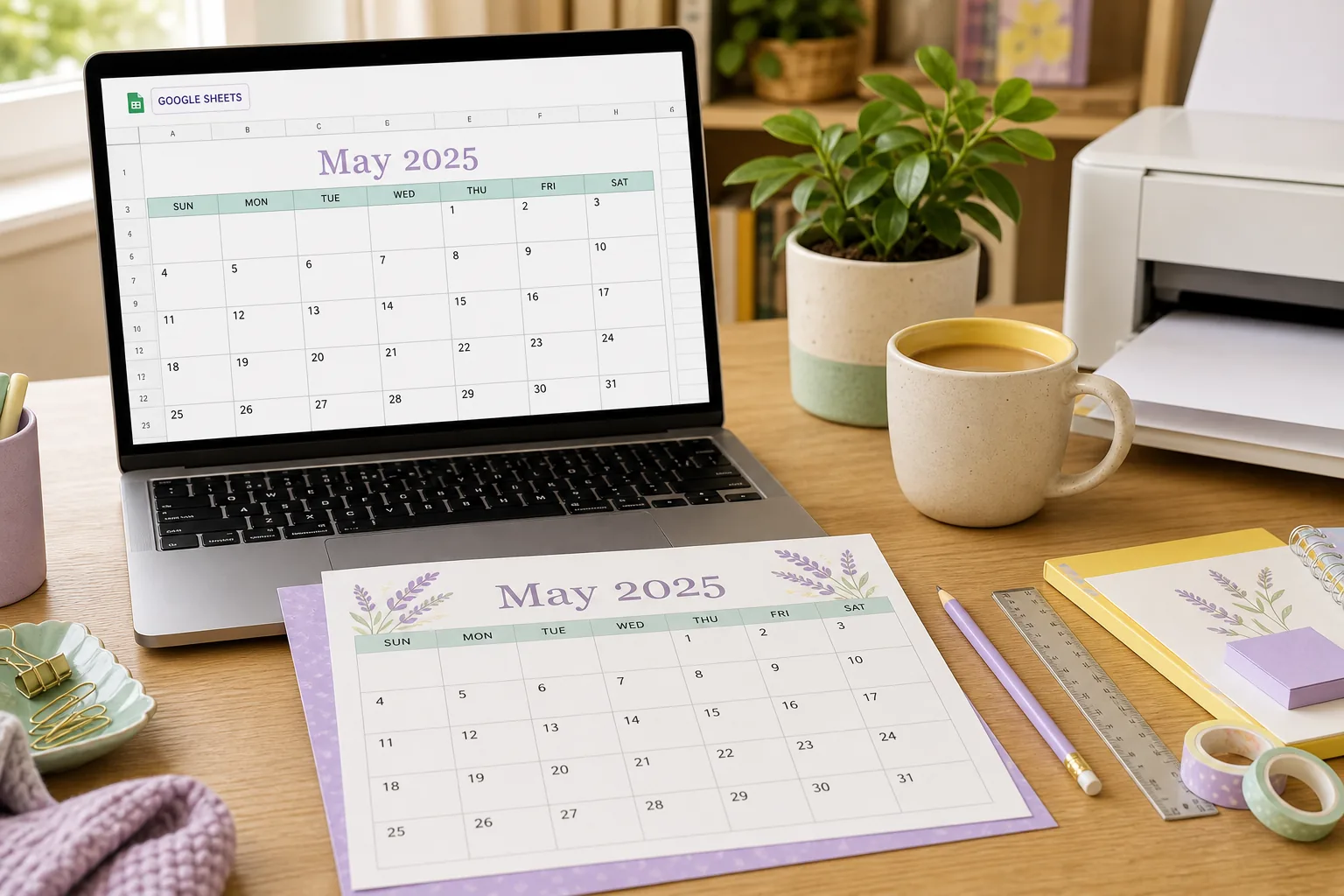
Quick answer: choose the year, month, and Sunday or Monday week start first. Put the first visible date in a seven-column grid, fill six possible rows, format the cells as dates, and print only the selected range. In the print preview, use the correct paper size, landscape or portrait orientation, and Fit to page before saving a PDF.
Choose the calendar plan before you open a blank sheet
A good Google Sheets calendar template begins with a decision about what the page must show. A yearly calendar is useful for birthdays, school terms, travel, payment dates, and project milestones. A monthly calendar gives each date more room for appointments and notes. A weekly layout is better when the next seven days matter more than the whole month.
Decide the year, month, week start, and page orientation before styling the cells. Sunday-first and Monday-first calendars use the same dates but place the first column differently. If the calendar will be printed on a wall or shared as a PDF, also choose A4 or US Letter early. That choice affects the usable width and prevents a carefully formatted sheet from becoming cramped later.
| Planning need | Useful format | Why it fits |
|---|---|---|
| See the whole year | Yearly grid | Milestones remain visible across all months. |
| Write appointments | Monthly grid | Each date can keep a larger writing area. |
| Plan shifts or classes | Weekly grid | Seven days are easier to scan and revise. |
| Make a custom routine | Blank or edited grid | You control labels, categories, and notes. |
Build a reliable date grid in Google Sheets
Create two small input cells for the year and month, such as B1 for the year and B2 for the month number. Add weekday headings across seven columns. A monthly calendar needs up to six visible rows because a month can begin near the end of a week and finish near the beginning of another. Showing six rows keeps the layout stable instead of changing the page height from month to month.
For a Sunday-first calendar, calculate the Sunday on or before the first day of the selected month. In a helper cell such as B4, use the first-day formula below, then use a six-by-seven array to fill the visible dates. The blank-cell condition keeps dates from the previous or next month out of the selected month view. For a Monday-first calendar, use the matching Monday-based WEEKDAY option and test the first column against a month that begins on Monday.
B4: =DATE($B$1,$B$2,1)-WEEKDAY(DATE($B$1,$B$2,1),1)+1
B6: =ARRAYFORMULA(IF(MONTH($B$4+SEQUENCE(6,7,0,1))=$B$2,$B$4+SEQUENCE(6,7,0,1),""))
Check the edge cases before you style the page
Test a month that starts on Sunday, a month that starts on Monday, February in a leap year, and a month that uses all six rows. If the weekday headings and first date do not line up in these tests, fix the date logic before adding colors or borders. Formatting can hide a date error for a while, but it cannot correct one.
If your spreadsheet locale uses a different separator or formula language, Google Sheets may display a localized function name or require semicolons instead of commas. Keep the idea of the formula the same, and confirm the result with a known calendar rather than copying a formula without checking its output.
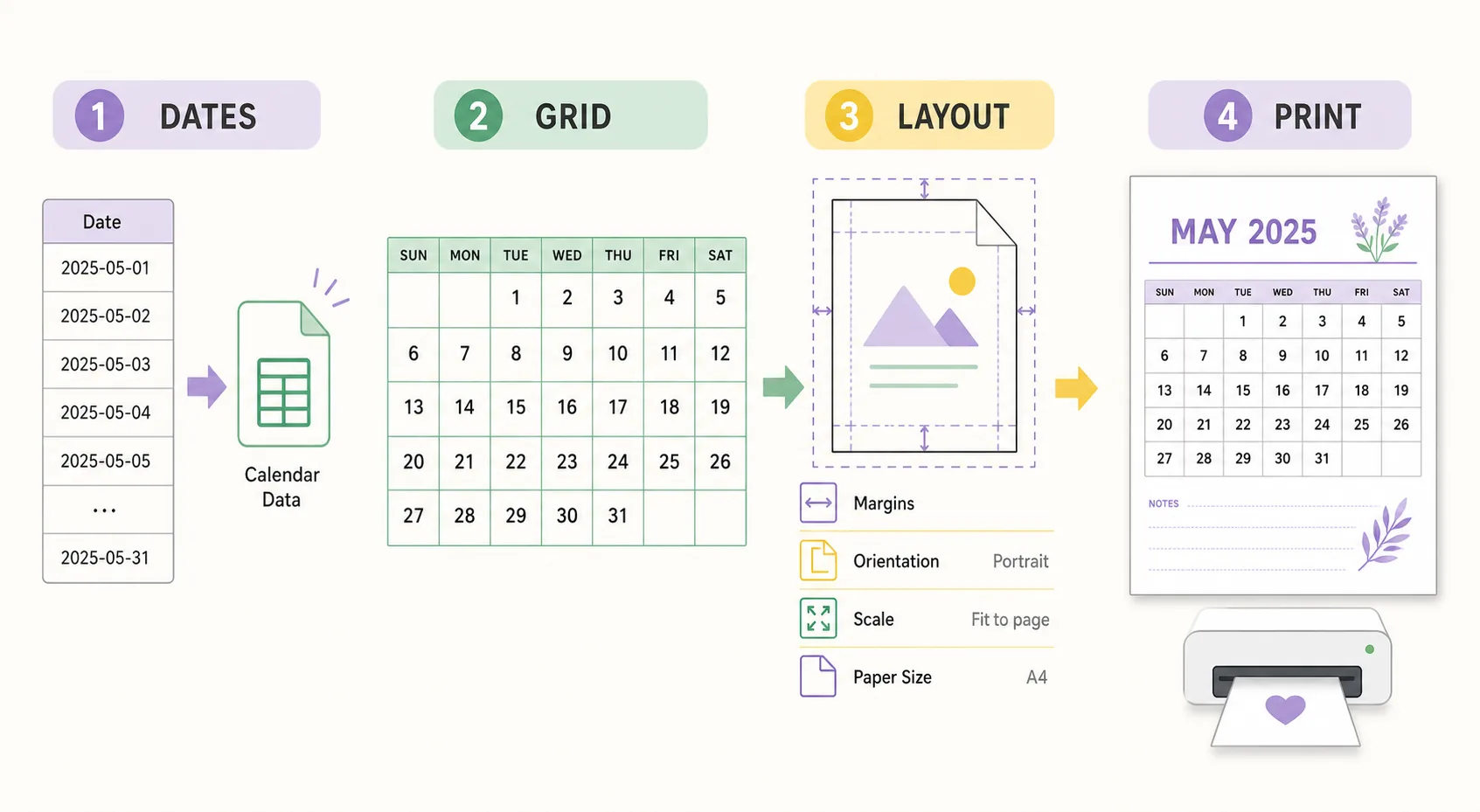
Format the sheet so it behaves like a printable calendar template
Make the seven date columns the same width and give the date rows a stable height. Use a clear weekday row, a larger month title, and a restrained border around the grid. A light fill for the heading row can separate labels from dates without using so much color that black-and-white printing becomes hard to read. Keep the date number near the top of each cell and leave the lower part open for handwriting.
Use one font size for dates and a slightly larger size for the month title. Avoid merged cells inside the date grid because they can complicate copying, editing, and print scaling. If you need a notes area, place it beside the grid or below it rather than shrinking every date box. Turn off gridlines for the final print layout after adding only the borders that the reader actually needs.
Keep a template copy separate from a finished month
Name the reusable tab something like Calendar Template and duplicate it before entering personal events. Keep the year and month inputs visible so the next copy can be updated without rebuilding the grid. Save a finished month with a filename that identifies the year, month, paper size, and orientation, such as 2026-08-calendar-letter-landscape.pdf.
If you are preparing a classroom, office, or family calendar, use a legend outside the date grid for categories such as work, school, meals, or appointments. The grid should stay easy to scan. Decorative colors are optional; a predictable layout is the part that survives printing and repeated updates.
Set the print area, paper size, and scale in the right order
Select the exact cells that belong on the page, then open File and Print in Google Sheets. Choose Selected cells when the sheet contains helper formulas or notes that should not appear in the output. If the entire sheet is the finished page, Current sheet can be simpler. Always inspect the preview because a spreadsheet that looks balanced on screen can use a different printable width on paper.
Match the paper loaded in the printer. Choose A4 for an A4 sheet and US Letter for a Letter sheet, then select portrait or landscape based on the grid shape. A monthly seven-column layout often has more usable width in landscape, while a narrow notes-oriented page may work in portrait. Start with Fit to page or Normal scale, then check that the title, weekday row, last date row, and outer borders are visible.
- Select the rangeHighlight the calendar cells and choose Selected cells in the print settings when helper cells should stay out of the PDF.
- Choose the paperMatch A4 or US Letter to the physical sheet and confirm that the printer tray uses the same size.
- Choose orientationTry landscape for a wide seven-column monthly grid and portrait when filing or narrow storage matters more.
- Check the scaleUse Fit to page only when needed, keep text readable, and inspect every edge in the preview before printing.
- Remove browser extrasTurn off headers and footers when you do not want a URL, date, or page number added to the calendar.
Google Sheets or a ready-made calendar tool?
Google Sheets is a strong choice when the calendar needs custom formulas, shared editing, categories, conditional formatting, or a schedule that changes often. It is also useful when more than one person must update the same source before a PDF is printed. The tradeoff is that you must check date logic, page ranges, scaling, and the final paper result yourself.
A ready-made printable calendar tool is faster when you only need a clean date grid. You can choose a yearly, monthly, weekly, blank, or PDF-friendly layout and then use the browser preview. Use the site’s printable monthly calendar for a quick month view, the weekly printable calendar for seven-day planning, the blank calendar for a custom grid, or the printable calendar PDF page when sharing a clean file is the main goal.
| Choose Google Sheets when | Choose a calendar tool when |
|---|---|
| You need formulas, collaboration, or categories. | You want a date grid without building formulas. |
| The schedule changes frequently before printing. | You need a monthly, weekly, blank, or yearly page quickly. |
| You will reuse a custom template for a team or class. | You mainly need a clean print preview or PDF workflow. |
Avoid common Google Sheets calendar mistakes
The most common error is printing the visible sheet instead of the selected calendar range. The next is a mismatch between spreadsheet dates and the requested month, often caused by a formula that allows the next month’s dates to show without blanking them. A third error is setting a very small scale to force a crowded yearly layout onto one page. When the text becomes tiny, choose a monthly or weekly layout instead.
A calendar grid is not a universal holiday database. Public holidays, school closures, employer schedules, and observances vary by country and institution. Add important dates only after checking the relevant local or official source. The same caution applies to shared calendars: a printed page is a snapshot, so regenerate it when the underlying schedule changes.
| Problem | First check | Better fix |
|---|---|---|
| The first weekday is wrong | Week start and WEEKDAY mode | Test Sunday-first and Monday-first with a known month. |
| Dates from another month appear | MONTH condition in the array | Return blank text when the date month differs. |
| The last row is clipped | Paper, margins, and selected range | Use Fit to page or switch to landscape. |
| The calendar is too small | Yearly layout and scale | Use a monthly or weekly page with larger cells. |
| Holiday information is missing | Local source and country | Verify and add important dates separately. |
Printable calendar FAQ
How do I make a printable calendar in Google Sheets?
Create year and month inputs, calculate the first visible date, fill a stable seven-column grid, blank dates outside the selected month, format the cells, and print only the calendar range. Check paper size, orientation, scale, and every edge in preview.
What formula creates a calendar in Google Sheets?
A common approach uses DATE, WEEKDAY, MONTH, ARRAYFORMULA, and SEQUENCE. Calculate the first Sunday or Monday visible in the grid, add a six-by-seven sequence, and return blank text when the calculated date is outside the chosen month. Test the formula with edge-case months.
How do I print only the calendar cells in Google Sheets?
Select the date grid and title cells, open File and Print, and choose Selected cells. Review the preview to make sure helper formulas, notes, and unused columns are not included in the PDF or paper output.
Should a Google Sheets calendar be portrait or landscape?
Landscape often gives a seven-column monthly calendar more width. Portrait can be easier to file or use with a narrow notes area. Let the preview decide: the best orientation is the one that keeps the dates readable and the outer border visible.
Can I make a printable calendar in Word instead?
Yes, Word can work for a simple document-based calendar, but it uses a different template and editing workflow. Google Sheets is usually more convenient for formulas, repeated months, shared updates, and category-based formatting. Choose the application that matches how often the dates change.
Does Google Sheets automatically add public holidays?
Do not assume that a custom calendar grid contains the correct holidays for your location. Verify public holidays, school dates, and employer closures with the relevant local or official source before relying on a printed page.